
App Registration & Backend Setup
This page documents app setup (registration), permissions, validation, and changes to the shop URL for apps with a backend.
Setup
INFO
Registration is necessary only when your app backend and Shopware need to communicate. It is performed during the installation of your app. This process is called setup.
WARNING
Suppose your app uses the Admin Module, Payment Method, Tax providers, or Webhook app system features. In that case, you need to implement the registration to exchange a secret key, which is later used to authenticate the shops.
During setup, it is verified that Shopware connects to the correct backend server, and keys are exchanged to secure all subsequent communications. During setup, your app backend will receive credentials to authenticate with the Shopware API. Additionally, your app will provide a secret that Shopware will use to sign all further requests it makes to your app backend, allowing you to verify that the incoming requests originate from authenticated Shopware installations.
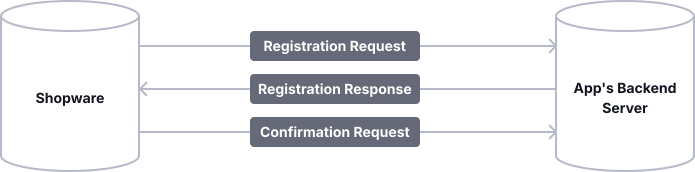
The setup workflow is shown in the following schema. Each step will be explained in detail.
INFO
The timeout for the requests against the app server is 5 seconds.
SDK Integration
Integrating apps into your application can be daunting, but our PHP SDK simplifies registration and other common tasks.
If no SDK is available for your language, you can implement the registration process by yourself.
Registration request
The registration request is made via a GET request to the URL you provide in your app's manifest file.
<?xml version="1.0" encoding="UTF-8"?>
<manifest xmlns:xsi="http://www.w3.org/2001/XMLSchema-instance"
          xsi:noNamespaceSchemaLocation="https://raw.githubusercontent.com/shopware/shopware/trunk/src/Core/Framework/App/Manifest/Schema/manifest-3.0.xsd">
    <meta>
        ...
    </meta>
    <setup>
        <!-- The URL which will be used for the registration -->
        <registrationUrl>https://my.example.com/registration</registrationUrl>
        <!-- Dev only, the secret that is used to sign the registration request -->
        <secret>mysecret</secret>
    </setup>
</manifest>
The following query parameters will be sent with the request:
shop-id: The unique identifier of the shop where the app was installed.shop-url: The URL of the shop, which can later be used to access the Shopware API.timestamp: The Unix timestamp when the request was created.
Additionally, the request has the following headers:
shopware-app-signature: The signature of the query stringsw-version: The Shopware version of the shop (since 6.4.1.0)shopware-shop-signature: (re-registration only) The signature of the query string, signed with the shop's currentshop-secret. Present only when a previously registered shop re-registers.
An example request looks like this:
GET https://my.example.com/registration?shop-id=KIPf0Fz6BUkN&shop-url=http%3A%2F%2Fmy.shop.com×tamp=159239728
shopware-app-signature: a8830aface4ac4a21be94844426e62c77078ca9a10f694737b75ca156b950a2d
sw-version: 6.4.5.0
shopware-shop-signature: b5f1e2d3c4a5... (re-registration only)Additionally, the provided shopware-app-signature header contains a cryptographic signature of the query string. The secret used to generate this signature is the app secret, which is unique to each app and will be provided by the Shopware Account when you upload your app to the store. This secret won't leave the Shopware Account so that it won't be leaked to shops installing your app.
DANGER
You and the Shopware Account are the only parties that should know your app-secret. Therefore, make sure you never accidentally publish your app-secret.
WARNING
For local development, you can specify a <secret> in the manifest file that is used for signing the registration request. However, if an app uses a hard-coded secret in the manifest, it can't be uploaded to the store.
If you are developing a private app not published in the Shopware Store, you must provide the <secret> in case of an external app server.
To verify that the registration can only be triggered by authenticated Shopware shops, you need to recalculate the signature and check that the signatures match.
Thus, you have verified that the request sender possesses the app secret.
The following code snippet can be used to recalculate the signature:
Registration response
There may be valid cases where the app installation fails because the domain is blocked or some other prerequisite in that shop is not met, in which case you can return the message error as follows:
{
  "error": "The shop URL is invalid"
}
When the registration is successful, you must show that you possess the app secret by providing proof signed with the app secret. The proof consists of the SHA-256 HMAC of the concatenation of shopId, shopUrl, and your app's name.
The following code snippet can be used to calculate the proof:
For detailed instructions on signing requests and responses, refer to the app signing guide.
Besides the proof, your app needs to provide a randomly generated secret to sign every subsequent request from this shop. Make sure to save the shopId, shopUrl, and generated secret so that you can associate and use this information later.
INFO
This secret will be called `shop-secret` to distinguish it from the `app-secret`. The `app-secret` is unique to your app and is used to sign the registration request of every shop that installs your app. The `shop-secret` will be provided by your app during registration and should be unique to each shop, have a minimum length of 64 characters, and a maximum length of 255 characters.
The last thing needed in the registration response is a URL to which the confirmation request will be sent.
A sample registration response looks like this:
{
  "proof": "94b42d39280141de84bd6fc8e538946ccdd182e4558f1e690eabb94f924e7bc7",
  "secret": "random secret string",
  "confirmation_url": "https://my.example.com/registration/confirm"
}
Confirmation request
If the proof you provided in the registration response matches the one generated on the shop side, the registration is completed. As a result, your app will receive a POST request against the URL specified as the confirmation_url of the registration with the following parameters sent in the request body:
apiKey: The API key used to authenticate against the Shopware Admin API.secretKey: The secret key used to authenticate against the Shopware Admin API.timestamp: The Unix timestamp when the request was created.shopUrl: The URL of the shop.shopId: The unique identifier of the shop.
The payload of that request may look like this:
{
  "apiKey":"SWIARXBSDJRWEMJONFK2OHBNWA",
  "secretKey":"Q1QyaUg3ZHpnZURPeDV3ZkpncXdSRzJpNjdBeWM1WWhWYWd0NE0",
  "timestamp":"1592398983",
  "shopUrl":"http:\/\/my.shop.com",
  "shopId":"sqX6cqHi6hbj"
}
Make sure that you save the API credentials for that shopId. You can use the apiKey and the secretKey as client_id and client_secret, respectively, when you request an OAuth token from the Admin API.
You can find out more about how to use these credentials in our Admin API authentication guide:
INFO
Starting with Shopware version 6.4.1.0, the current Shopware version will be sent in the sw-version header. Starting with Shopware version 6.4.5.0, the current language ID of the Shopware context is sent in the sw-context-language header, and the user's locale or the context language's locale is available under the sw-user-language header.
The request is signed with the shop-secret your app provided in the registration response, and the signature is in the shopware-shop-signature header. You need to recalculate that signature and verify that it matches the provided one to ensure the request is actually sent from the shop with that shopId.
During re-registration, the confirmation request includes an additional header:
shopware-shop-signature-previous: The signature of the request body, signed with the shop's previousshop-secret(the secret that was active before this registration). This allows you to verify that the confirmation was initiated by the same Shopware installation that previously completed registration.
For details on handling re-registration and secret rotation, see Secret rotation and shop-url changes.
You can use the following code snippet to generate the signature:
Secret rotation and shop-url changes
To rotate the secret or notify your app of a change to the shop's URL, the shop might re-initiate registration with a shop ID that is already registered.
In that case, the re-registration request will not only be signed with the app-secret, but also with the previous shop-secret (the signature is added as shopware-shop-signature header). Your app must validate both signatures to verify that the request is coming from the same shop that registered previously.
As this process is also used for secret rotation, your app must generate a new secret to authenticate all further communication from that shop. This will be validated on the shop side. The new secret you generate and a changed shop-url should only become effective after your app receives a valid confirmation request for that re-registration.
WARNING
To prevent failure of in-flight requests during the secret rotation, your app should accept the old secret in parallel with the new secret for a short period (e.g., 1 minute). After that grace period, the signatures based on the old secret must be considered invalid.
Requirements
Apps can declare requirements in their manifest that must be met for the app to function properly. For example, an app that communicates with the shop via the Admin API will fail if the shop is not publicly accessible — declaring that upfront avoids a registration attempt that is guaranteed to fail. Shopware validates requirements during installation and updates in prod environments. If a requirement is not met, the installation is rejected with a descriptive error before the app attempts registration.
Add a <requirements> element to your manifest.xml. Each requirement is an empty child element — its presence enables it:
<?xml version="1.0" encoding="UTF-8"?>
<manifest xmlns:xsi="http://www.w3.org/2001/XMLSchema-instance" xsi:noNamespaceSchemaLocation="https://raw.githubusercontent.com/shopware/shopware/trunk/src/Core/Framework/App/Manifest/Schema/manifest-3.0.xsd">
    <meta>
 ...
    </meta>
    <requirements>
        <public-access/>
    </requirements>
</manifest>
INFO
Requirements are available since Shopware 6.7.10.0. For the full list of available requirements, see the manifest reference. The requirement feature is extensible. We encourage you to contribute new requirements to the Shopware core to allow all app developers to use them.
WARNING
Validation is skipped in dev and test environments so that local development and CI are not blocked by infrastructure checks.
Permissions
Shopware comes with the possibility to create fine-grained Access Control Lists (ACLs). This means you need to request permissions if your app needs to read or write data via the API or receive webhooks. The permissions your app needs are defined in the manifest file and combine a privilege (read, create, update, or delete) with an entity. Since version 6.4.12.0, your app can also request additional non-CRUD privileges with the <permission> element.
For entities that need all CRUD operations (create, read, update, delete), you can use the <crud> shortcut element instead of declaring each permission individually:
<crud>product</crud>automatically grantsread,create,update, anddeletepermissions for the product entity
INFO
The <crud> shortcut element is available since version 6.7.3.0. If your app needs to support earlier Shopware versions, use the individual permission elements (read, create, update, delete) instead.
Sample permissions using the CRUD shortcut for products, individual permissions for orders, as well as reading the cache configuration, look like this:
<?xml version="1.0" encoding="UTF-8"?>
<manifest xmlns:xsi="http://www.w3.org/2001/XMLSchema-instance" xsi:noNamespaceSchemaLocation="https://raw.githubusercontent.com/shopware/shopware/trunk/src/Core/Framework/App/Manifest/Schema/manifest-3.0.xsd">
    <meta>
 ...
    </meta>
    <permissions>
        <read>product</read>
        <create>product</create>
        <update>product</update>

        <delete>order</delete>

        <!-- Since version 6.4.12.0, your app can request additional non-CRUD privileges-->
        <permission>system:cache:info</permission>
    </permissions>
</manifest>
The permissions you request need to be accepted by the user during the installation of your app. After that, the permissions granted to your app and your API access via the credentials from the confirmation request of the setup workflow are limited to those permissions.
WARNING
Keep in mind that read permissions also extend to the data contained in the requests, so your app needs read permissions for the entities contained in the subscribed webhooks.
App notification
Starting with Shopware version 6.4.7.0, if you want to notify the Administration about actions that occurred in your app, send a POST request to the api/notification endpoint with a valid body and an Authorization header. Your app can make up to 10 requests before the system starts throttling.
- After 10 attempts, you need to wait 10 seconds before trying to make requests again.
- After 15 attempts, it's 30 seconds.
- After 20 attempts, it's 60 seconds.
- After 24 hours without a failed request, the limit is reset.
Example request body:
You must pass the status property and the notification text as the message property. You can restrict who can read the notification with the requiredPrivileges and adminOnly properties in the payload. When adminOnly is true, only admins can read the notification. If you omit adminOnly or set it to false, you can use requiredPrivileges so that only users with specific permissions see the notification. Otherwise, the notification is shown to every user.
POST /api/notification

{
 "status": "success",
 "message": "This is a successful message",
 "adminOnly": "true",
 "requiredPrivileges": []
}status: Notification status -success,error,info,warning.message: The content of the notification.adminOnly: Only admins can read this notification if this value is true.requiredPrivileges: The required privileges that users need to have to read the notification.
Remember that your app needs the notification:create permission to access this API.
App lifecycle events
Apps can also register for lifecycle events of their own, namely installation, updates, and deletion. For example, they may be used to delete user-relevant data from your data stores once somebody removes your app from their shop.
| Event | Description |
|---|---|
app.installed | Triggers once the app is installed |
app.updated | Triggers if the app is updated |
app.deleted | Triggers once the app is removed |
app.activated | Triggers if an inactive app is activated |
app.deactivated | Triggers if an active app is deactivated |
App lifecycle events for app scripts
Since Shopware 6.4.9.0, it is also possible to create App scripts that are executed during the lifecycle of your app. You get access to the database and can change or create some data, e.g., when your app is activated, without needing an external server.
For a full list of the available hook points and the available services, refer to the reference documentation.
Validation
You can run the app:validate command to validate the configuration of your app. It will check for common errors, like:
- non-matching app names
- missing translations
- unknown events registered as webhooks
- missing permissions for webhooks
- errors in the config.xml file, if it exists
To validate all apps in your custom/apps folder, run:
bin/console app:validateAdditionally, you can specify which app should be validated by providing the app name as an argument.
bin/console app:validate MyExampleAppHandling the migration of shops
In the real world, shops may be migrated to new servers and become available under a new URL. In the same regard, it is possible that a running production shop is duplicated and treated as a staging environment. These cases are challenging for app developers. In the first case, you may need to file a complaint against the shop, but the URL you saved during registration may no longer be valid, and the shop cannot be reached via that URL. In the second case, you may receive webhooks from both shops (prod & staging) that look like they came from the same shop (as the whole database was duplicated). Thus, it may corrupt the data associated with the original production shop. The main reason this is problematic is that two Shopware installations in different locations (on different URLs) are associated with the same shopId because the entire database was replicated.
That is why we implemented a safeguard mechanism that detects such situations, stops communication with the apps to prevent data corruption, and then ultimately lets the user decide how to solve the situation.
INFO
This mechanism relies on the fact that the APP_URL environment variable will be set to the correct URL for the shop. It is especially assumed that the environment variable will change when a shop is migrated to a new domain or when a staging shop is created as a duplicate of a production shop.
Remember that this is only relevant for apps that have their own backends and where communication between app backends and shopware is necessary. That is why simple themes are not affected by shop migrations, and they will continue to work.
Detecting APP_URL changes
Every time a request is made against an app backend, Shopware checks whether the current APP_URL differs from the one used when Shopware generated an ID for this shop. If the APP_URL differs, Shopware will stop sending requests to the installed apps to prevent data corruption on the apps' side. Now the user can resolve the issue using one of the following strategies. The user can either run a strategy with the bin/console app:url-change:resolve command, or with a modal that pops up when the Administration is opened.
APP_URL change resolver
- MoveShopPermanently: This strategy should be used if the live production shop is migrated from one URL to another. This strategy notifies all apps about the APP_URL change, and the apps keep working as before, including any data already associated with that shop. It is important to note that in this case, apps in the old installation on the old URL (if it is still running) will stop working.
Technically, this is achieved by rerunning the registration process for all apps. During registration, the same shopId is used as before, but with a different shop-url and a different key pair for communicating with the Shopware API. Also, you must generate a new communication secret during this registration process that is subsequently used to communicate between Shopware and the app backend.
This way, it is ensured that the apps are notified of the new URL and that the integration with the old installation stops working. because a new communication secret is associated with the given shopId that the old installation does not know.
- ReinstallApps: This strategy makes sense to use in the case of the staging shop. By running this strategy, all installed apps will be reinstalled. This means that this installation will get a new shopId, which is used during registration.
As the new installation will get a new shopId, the installed apps will continue working on the old installation as before, but, as a consequence, the data on the app's side associated with the old shopId cannot be accessed on the new installation.
- UninstallApps: This strategy will simply uninstall all apps on the new installation, thus keeping the old installation working like before.
