
Settings Item
A settings item adds an entry to the Shopware Administration settings area.
Use this when your extension provides configurable options that should appear in the central settings section.
addSettingsItem()
Add a new settings item to the Shopware settings. The content of the settings item module is determined by your locationId. A specific view or a set of actions can be triggered based on the locationId.
Usage
ts
import { ui } from '@shopware-ag/meteor-admin-sdk';

ui.settings.addSettingsItem({
    label: 'App Settings',
    locationId: 'settings-location-id',
    icon: 'regular-AR',
    displaySearchBar: true,
    displaySmartBar: false,
    tab: 'plugins',
});
Parameters
| Name | Required | Default | Description |
|---|---|---|---|
label | true | The label of the tab bar item | |
locationId | true | The id for the content of the settings item module | |
icon | true | The icon to display in your settings item | |
displaySearchBar | false | true | Toggles the sw-page search bar on/off |
displaySmartBar | false | true | Toggles the sw-page smart bar on/off |
tab | false | 'plugins' | Determines in which tab your settings item will be displayed |
Return value
Returns a promise without data.
To browse available icons, see the Meteor icon kit repository. If your editor supports TypeScript, you should also get auto-completion when importing icons from the Meteor icon package.
Example
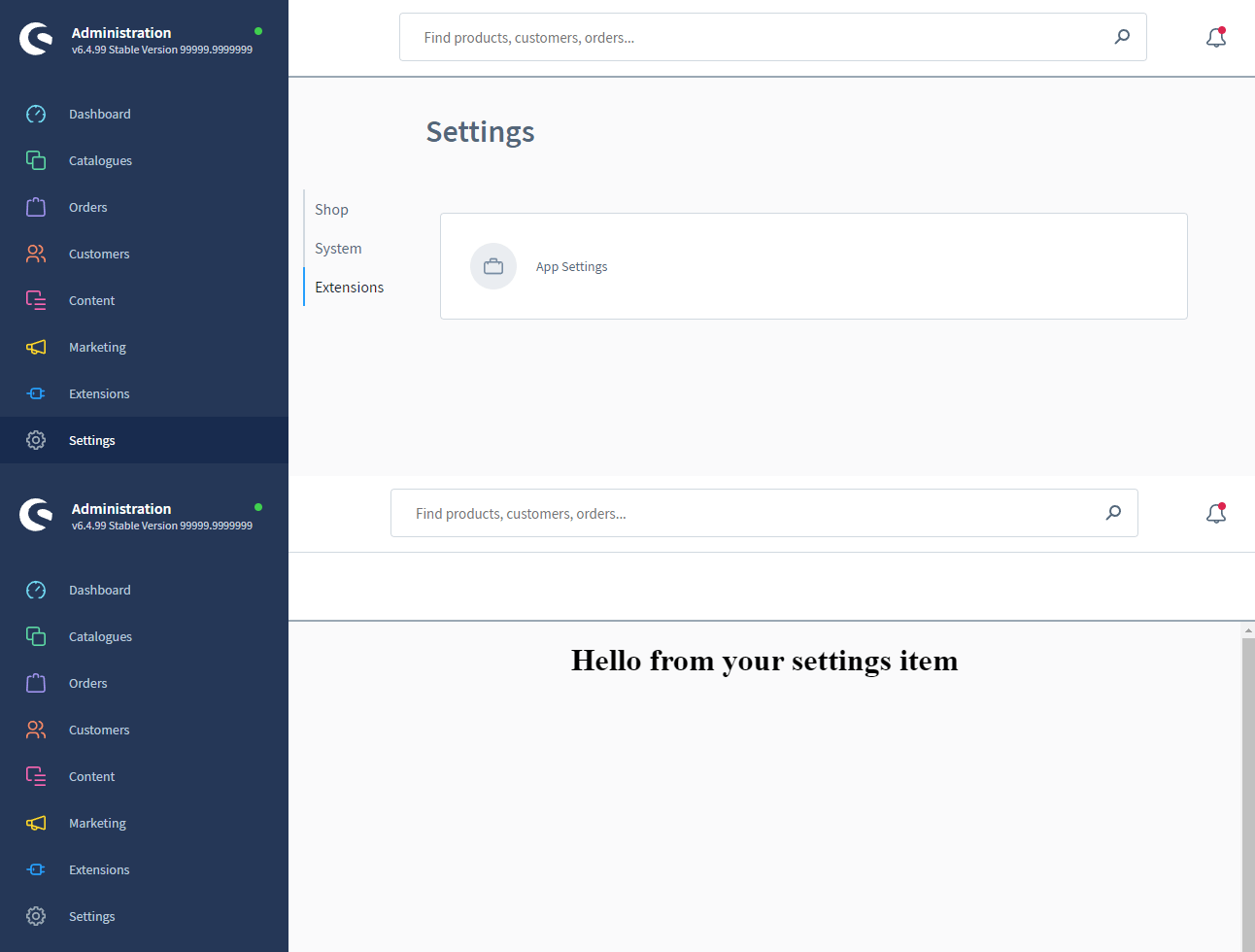
ts
import { location, ui } from '@shopware-ag/meteor-admin-sdk';

// General commands
if (location.is(location.MAIN_HIDDEN)) {
    // Add the settings item to the plugins tab
    ui.settings.addSettingsItem({
        label: 'App Settings',
        locationId: 'settings-location-id',
        icon: 'regular-AR',
        displaySearchBar: true,
        tab: 'plugins',
    });
}

// Render your custom view
if (location.is('settings-location-id')) {
    document.body.innerHTML = '<h1 style="text-align: center">Hello from your settings item</h1>';
}