
Chapter 2: Your first override
WARNING
Single File Component (SFC) support for Administration extensions is experimental. It is available since Shopware 6.7.16.0. The APIs described on this page can still change without a deprecation. Try it out and tell us what you find, but do not ship an extension built on it to customers or to the Shopware Store until the API is declared stable (planned for 6.9).
The plugin from Chapter 1 does nothing. In this chapter it puts your own banner onto the product detail page, right under the price fields.
Pick the spot
In the Administration, go to Products → Overview, click any product, stay on the General tab and scroll down to the Prices card. The price fields inside it are what this chapter puts a banner under:
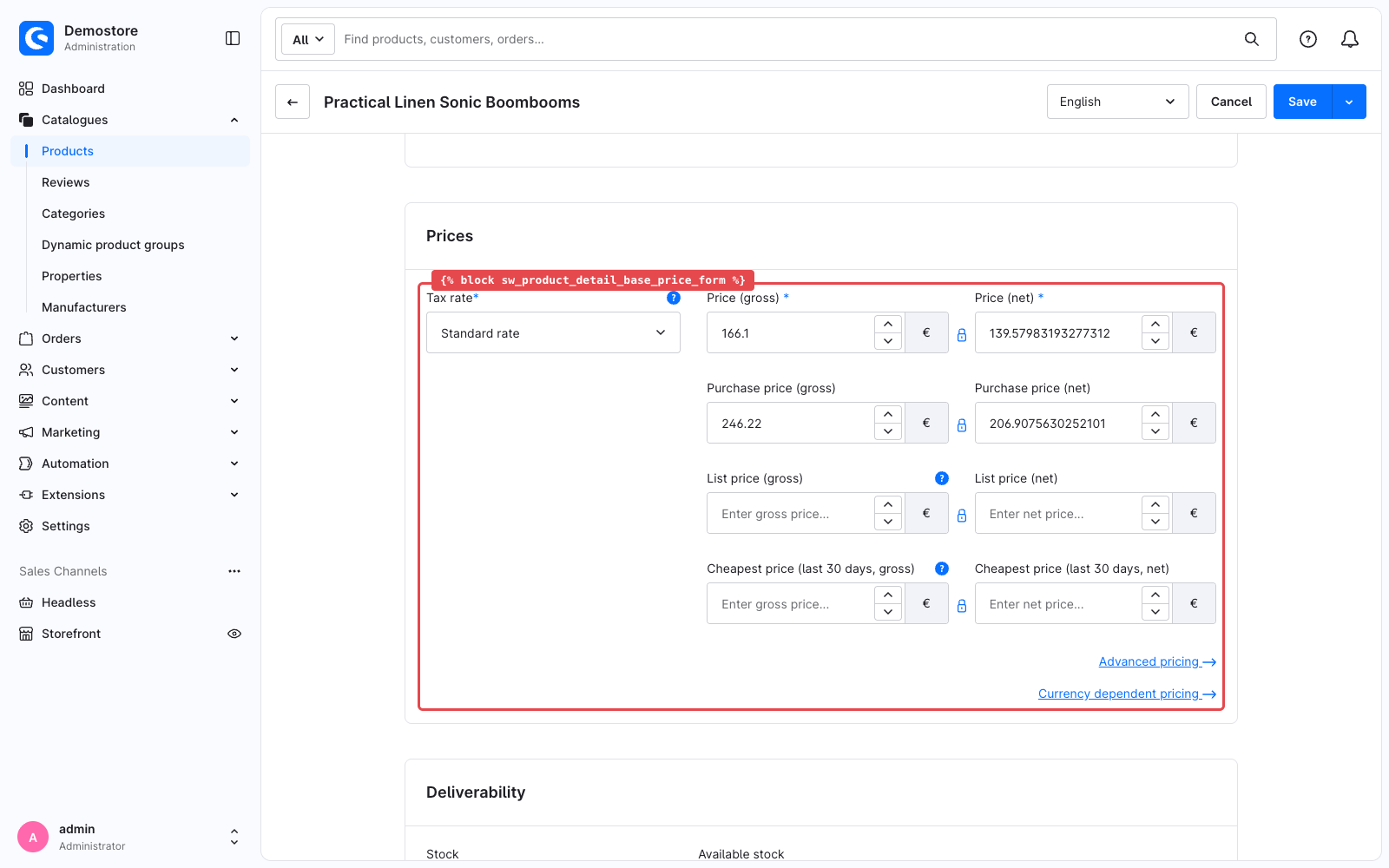
That card is rendered by the core component sw-product-detail-base, and its template marks the places extensions may hook into. The outlined area above is one of them:
{# src/Administration/…/view/sw-product-detail-base/sw-product-detail-base.html.twig #}
{% block sw_product_detail_base_price_card %}
<mt-card :title="$t('sw-product.detailBase.cardTitlePrices')">

    {% block sw_product_detail_base_price_form %}
    <sw-product-price-form :allow-edit="acl.can('product.editor')" />
    {% endblock %}

</mt-card>
{% endblock %}
Every {% block %} name is an extension point. sw_product_detail_base_price_form is the one that wraps the price fields, so that is where the banner goes.
<sw-block extends="…"> extends a Twig {% block %} and an <sw-block name="…"> the same way, so it does not matter which of the two a component uses.
Twig and Single File Components
Extending across the two forms is handled by shims in most cases - the roadmap section Alongside Twig has the caveat.
Finding a block
Block names are stable identifiers, and the fastest way to a name is the component's template in shopware/shopware. Search for a piece of the text or a CSS class you can see on screen, then take the enclosing {% block %} or <sw-block name>. A block inspector for the Vue devtools is in progress in shopware/shopware#20490.
One file, and its name is the registration
Create a single file:
<plugin root>/src/Resources/app/administration/src/override/sw-product-detail-base.override.vueThe filename carries two pieces of information, and there is no registration call:
sw-product-detail-base- which component this file overrides..override.vue- that it is an override rather than a component of its own.
sw-product-detail-base/index.override.vue would mean exactly the same thing. Where in your plugin the file sits does not matter; the build scans your whole Administration directory for *.override.vue, imports every file it finds and registers it. You never add an import to main.ts.
The shape of the file
An override is an ordinary Vue Single File Component with two Shopware rules layered on top. Start with the skeleton:
<!-- <plugin root>/src/Resources/app/administration/src/override/sw-product-detail-base.override.vue -->
<template>
    <!-- what you contribute to the component you override -->
</template>

<script setup lang="ts">
swDefineOverride({});
</script>
Two things to note before filling it in.
It has to be <script setup>. A plain <script> with an Options API object is rejected at build time.
swDefineOverride() is mandatory. It is auto-imported. It lists the state this file replaces in the component it overrides; this file replaces none yet, so it passes an empty object.
sw-block: where your markup goes
To change the markup of a component, you first pick the block you want to touch and then target it with <sw-block extends>. This tutorial picked sw_product_detail_base_price_form out of sw-product-detail-base.html.twig above, and the name is used verbatim.
The <template> of an override file exists only to declare those targets. It renders nothing on its own; it modifies the blocks of the base component when that component renders. Two components express it:
<sw-block extends="sw_product_detail_base_price_form">
    <sw-block-parent />
    <p>… and this is mine</p>
</sw-block>
<sw-block extends="…">replaces the target block with the content that goes in here. To keep the original content, use<sw-block-parent />.<sw-block-parent />renders whatever was in that extension point before you: the original content, or the previous extension in the chain.
The three patterns:
When several extensions target the same block they form a chain, and each one's <sw-block-parent /> renders the previous one's output. That is why rendering the parent matters even when your own change looks additive: it is what keeps the other plugins on the page.
Coming from TwigJS?
<sw-block extends> is {% block %} in an override template, and <sw-block-parent /> is {% parent %}. The section at the end of this page puts the two side by side.
The whole file
<!-- <plugin root>/src/Resources/app/administration/src/override/sw-product-detail-base.override.vue -->
<template>
    <sw-block extends="sw_product_detail_base_price_form">
        <sw-block-parent />

        <mt-banner
            class="swag-margin-hint"
            variant="attention"
            title="Margin check"
        >
            This is where the margin will go.
        </mt-banner>
    </sw-block>
</template>

<script setup lang="ts">
swDefineOverride({});
</script>
mt-banner is one of the Administration's globally registered components - no import needed, it resolves by tag name.
Checkpoint
Start the watcher, or run a build:
shopware-cli project admin-watchGo back to the product you opened at the start of this chapter and scroll to Prices:
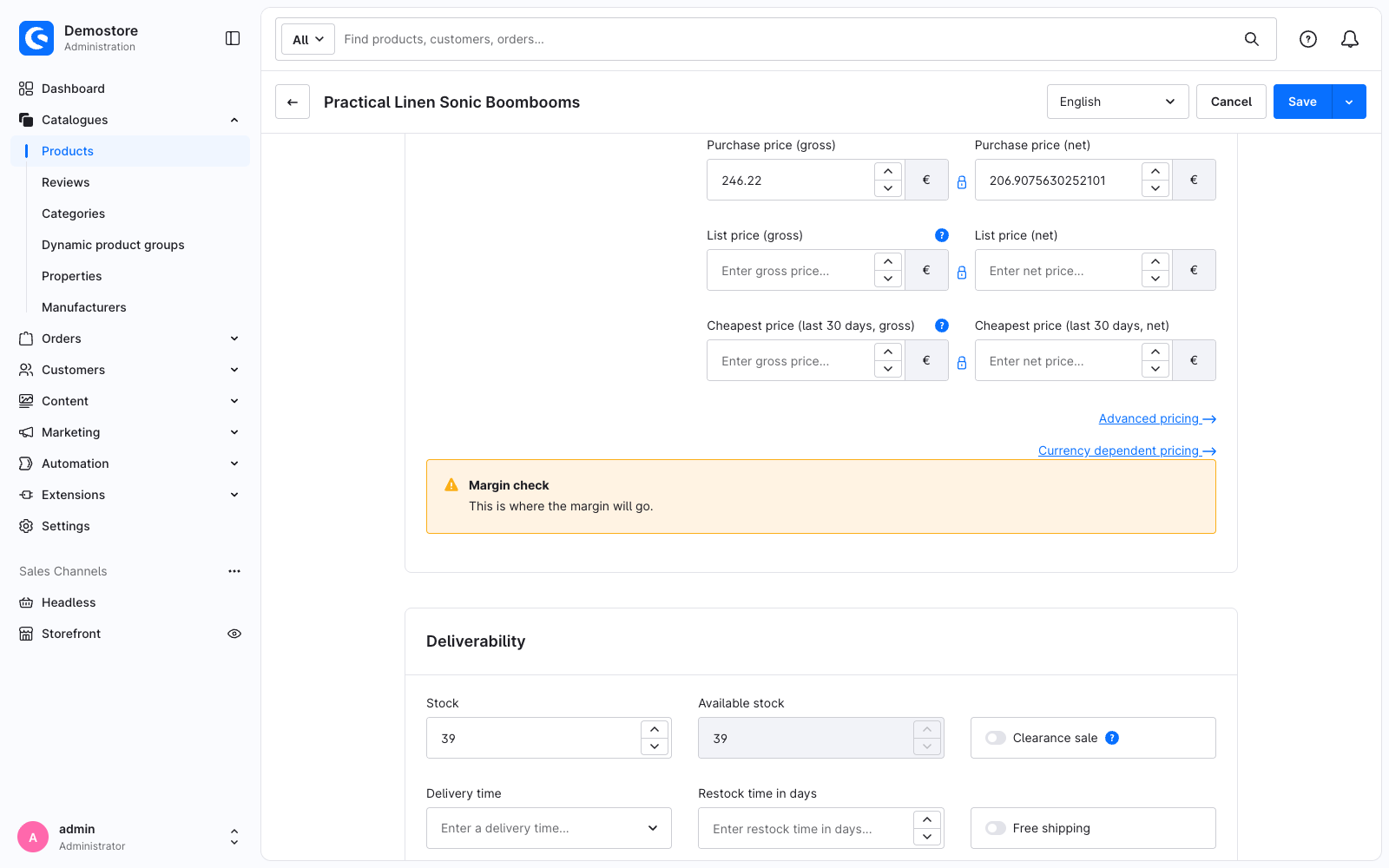
About the spacing
Block content sits flush against the content above it, with no gap. Chapter 4 adds the spacing.
Your plugin is on a core page, and the core page has not been touched.
If nothing appears, the troubleshooting page lists the usual causes.
What this replaces
The same override written the way the Administration has worked so far:
Both still work, and both can live in the same plugin.
Next: Read the component you extend, where the banner gets a real number in it.
